> For the complete documentation index, see [llms.txt](https://docs.flowretail.com/docs/llms.txt). Markdown versions of documentation pages are available by appending `.md` to page URLs; this page is available as [Markdown](https://docs.flowretail.com/docs/day-to-day-operations/reports/sales-reports/orders-intake.md).
# Orders intake
**Monitor your active orders throughout the day with real-time status tracking and performance metrics.**
This report gives you a clear view of order flow and helps you manage your daily operations.
**Output format:** On-scren
### What is this?
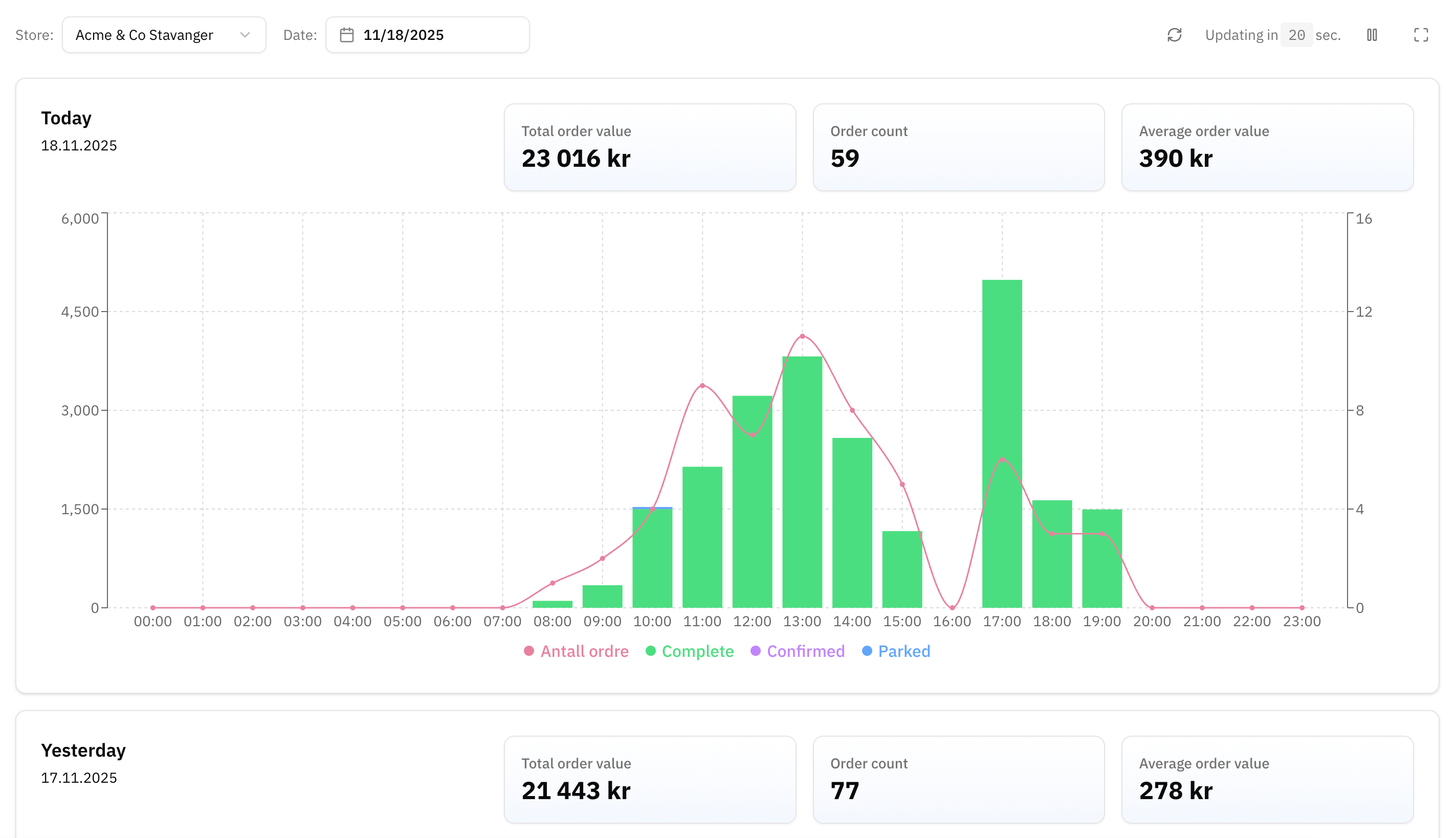
The **Orders Intake Report** provides a visual overview of all active orders for any selected date and store location.
The report displays order activity across a 24-hour timeline, showing when orders come in and their current status. Each day section includes key metrics: total order value, order count, and average order value.
### How does it work?
The report uses a bar chart to show order value throughout the day, with hours displayed on the horizontal axis. Order status is indicated by color coding: Parked (blue), Confirmed (purple), Complete (green), and total order count (red line).
You can select any store from the dropdown and choose a specific date to review. The report updates automatically and shows data for "Today" and "Yesterday" by default.
The three summary cards at the top give you instant insights into performance. Total order value shows your revenue, order count indicates transaction volume, and average order value helps you track customer spending patterns.
The timeline visualization helps you identify peak ordering times and spot patterns in your daily operations. This is useful for staffing decisions and understanding customer behavior.
**The report also shows the orders for Yesterday, Last 14 days, and a Order Status overview.**
### How do I get started?
1. Access the report in the Flow Retail Admin under the reports section.
2. Select your store from the dropdown if you operate multiple locations. Use the date picker to review historical data or monitor current day activity.
3. Watch for orders that remain in "Parked" or "Confirmed" status for extended periods. These may need attention to complete the transaction.
4. Compare today's metrics with yesterday's to quickly assess daily performance trends. Use the hourly breakdown to identify your busiest periods and plan accordingly.
---
# Agent Instructions
This documentation is published with GitBook. GitBook is the documentation platform designed so that both humans and AI agents can read, navigate, and reason over technical content effectively. Learn more at gitbook.com.
## Querying This Documentation
If you need additional information that is not directly available in this page, you can query the documentation by asking a question.
Perform an HTTP GET request on the following URL with the `ask` and `goal` query parameters:
```
GET https://docs.flowretail.com/docs/day-to-day-operations/reports/sales-reports/orders-intake.md?ask=&goal=
```
`ask` is the immediate question: it should be specific, self-contained, and written in natural language.
`goal` is what the user is ultimately trying to achieve, the reason they need the answer. Sharing it helps GitBook give you a better, more relevant answer. A goal is most helpful when it describes the outcome the user wants rather than restating the question. For example, with `ask=how do I create an API token`, a goal like `automate deployments from our CI pipeline` lets GitBook tailor the answer to that use case.
The response will contain a direct answer to the question and relevant excerpts and sources from the documentation.
Use this mechanism when the answer is not explicitly present in the current page, you need clarification or additional context, or you want to retrieve related documentation sections.